

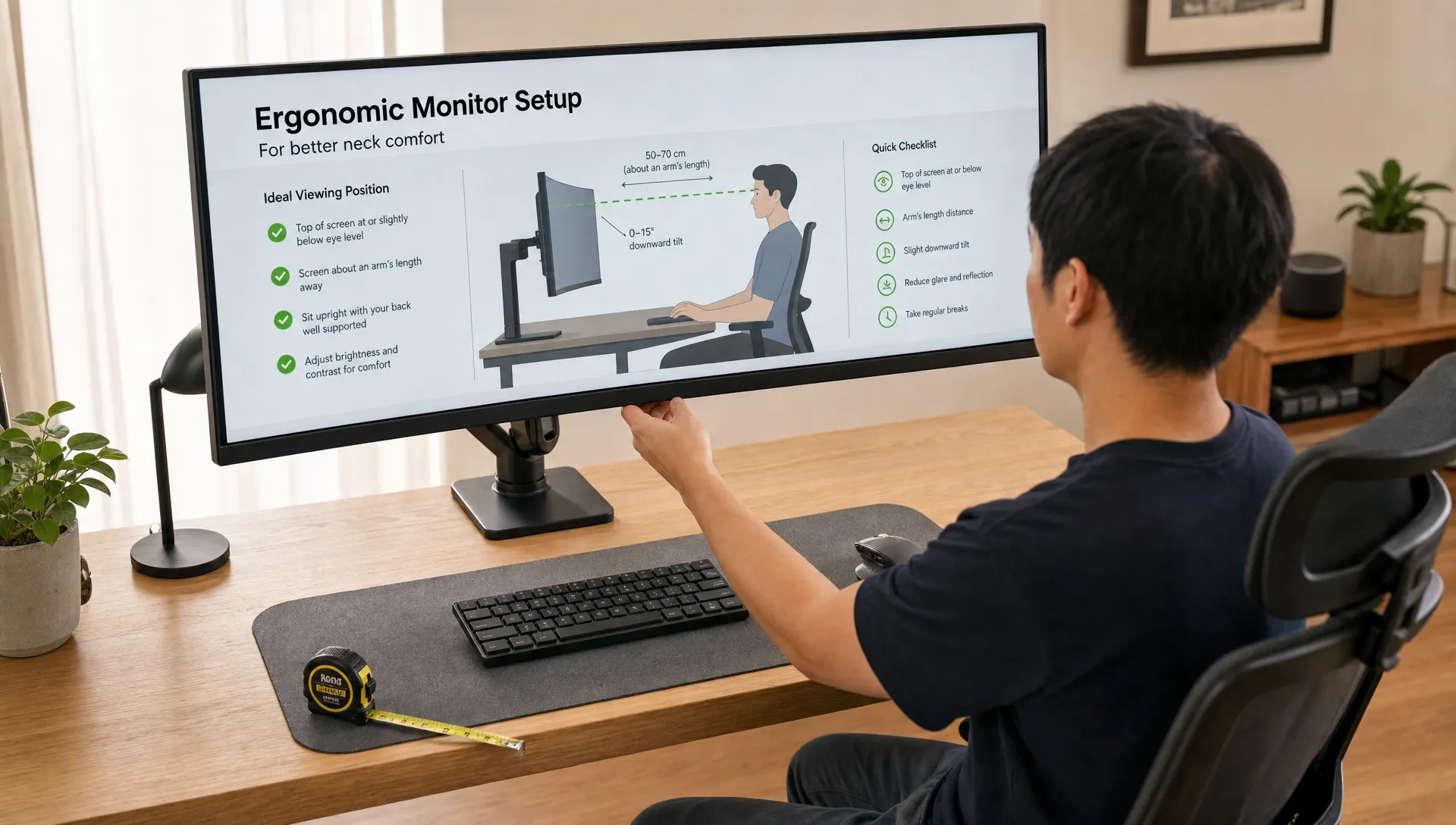
You bought the second monitor for productivity. What you also bought, without meaning to, was a small neck rotation you now repeat a few thousand times a day, toward the same side, for years.
This is the definitive breakdown of single ultrawide versus dual monitors for neck and eye strain, built for people who live at a screen ten hours a day, and the one setup error that quietly turns your monitor layout into a structural problem.
The short version
- For neck comfort, a single centered ultrawide usually wins, because it keeps your main task in front of your torso instead of off to one side.
- The real problem with dual monitors is not the second screen. It is the asymmetric twist when one off-center screen quietly becomes your primary.
- Eye strain is a separate question, driven by focusing effort, glare, distance, text size and breaks, not by screen count and not mainly by blue light.
- Keep your most-used content within about 15 degrees of your midline. Past 30 degrees, your neck starts helping your eyes all day.
- If one-sided neck or shoulder pain persists after you fix the layout, the twist may have become a structural loading pattern worth measuring, rather than a seating habit.
Related reading
The Quick Verdict
If you spend eight to ten hours at a desk, your monitor layout is more than a productivity choice. It decides how often your neck rotates, how long your eyes hold near focus, and how much your shoulders work in the background while you type. Here is the honest comparison, before the detail.
Single centered ultrawide versus a dual setup, for all-day work.
| Factor | Single ultrawide | Dual monitors |
|---|---|---|
| Neck rotation | Usually lower, main app stays centered | Often higher when one screen sits to the side |
| Shoulder loading | Lower with a centered screen at the right distance | Rises with sustained one-sided posture |
| Eye strain | Depends on brightness, glare, distance | Depends on matching height, brightness, scaling |
| Desk depth | Large 49-inch models need real depth | Also needs depth to avoid extreme side angles |
| Best for | Wide timelines, code plus docs, window tiling | Full-screen comparisons, separated tasks |
| If you already have neck pain | Safer default | Workable, but far less room for error |
The short answer: for most all-day desk workers, especially anyone already dealing with office syndrome, desk-work tension headaches or forward head posture, a single centered screen or a properly configured ultrawide is the safer default. A dual setup can absolutely be ergonomic. It just has less margin for the one mistake that matters, which is where the rest of this guide lives.
The Real Culprit: The Asymmetric Neck Twist
Here is the mechanism the monitor reviews never mention. Your neck is comfortable when your head sits near neutral: ears over shoulders, gaze slightly down, no sustained turn. The classic dual-monitor failure is the “primary plus forgotten side screen” pattern. Your chair and keyboard face straight ahead, but your actual work, the document, the code, the trading window, lives on the screen angled off to your right or left. Surveys of real desk setups find people often spend 30 to 60 percent of the day looking at that supposedly secondary screen. So your torso points forward and your head stays turned, toward the same side, for hours.
This is what “asymmetric neck twist” means. It is a useful description, not a formal diagnosis, for the sustained one-sided rotation a dual setup can train. It is most likely when one monitor is used more but sits to the side, when the screens are flat or at a wide angle, when your keyboard faces forward while your head turns, or when the secondary screen is too far, too low, or near a 90-degree angle.
Dual monitors increased head-neck rotation by about 9 degrees and raised activity in the muscle that turns your head, toward one side.
In a lab study using motion capture and muscle sensors (Nimbarte and colleagues, 2013), working across dual screens produced more rotated, asymmetric head-neck postures than a single screen, and increased activity in the sternocleidomastoid, the large muscle at the front and side of the neck. Notably, trapezius activity was not changed by layout, this is a rotation problem, not a general tension one. The authors concluded that prolonged, asymmetric head-neck postures may raise the risk of neck symptoms. It was a small study, but the direction matches what people feel.
That last part matters, because people rarely connect the pain to the screen at first. The lived experience, in the words desk workers actually use, is unmistakable:
How people describe it (anecdotal)
- “My neck started killing me,” and “a bad crick” on one side.
- “Craning my neck to my off-to-the-left monitor,” all day.
- “Pain from moving my neck side to side so much.”
- One person had right-shoulder pain for two years before they “correlated it” with constantly turning to the side screen.
These are anecdotes, not evidence, and a forum post cannot prove a monitor caused anyone’s pain. But the pattern is consistent and worth taking seriously: sustained, one-sided rotation is a real load, and it shows up as one-sided neck and shoulder pain, tightness across the upper back, and sometimes the kind of one-sided muscle knots that feel like a permanent crick. So the ultrawide-versus-dual debate is not really about screen count. It is about whether your primary work lives inside your central field of view.
How to Correct the Twist
The fix depends on one honest question: do you use both screens equally, or is one really your primary and the other just nearby? Answer that first, because the correct layout is different for each. This mirrors published guidance from occupational-health bodies (CCOHS, UC Davis and OSHA), reworked into an order you can actually follow.
If one monitor is primary
- Center the one you actually work inPut the primary monitor directly in front of your nose and keyboard, aligned with your sternum. This is the screen your document, code or trading window lives on.
- Angle the secondary in, at a modest anglePlace it beside the primary at about 20 to 30 degrees, angled toward you, not out at 45 degrees or more. Use it for brief reference, not long-form reading.
- Match height and distanceBoth screens at roughly the same height and about an arm’s length away, tops at or just below eye level.
- Zoom, do not leanIncrease text size instead of moving a screen closer or craning toward it.
If you use both equally
- Split the seam on your nosePush the inner edges together or nearly touching, and sit centered on the join rather than facing one screen.
- Angle both inward into a shallow semicircleSo both screens curve toward you and neither sits flat off to the side.
- Keep the keyboard square to your torsoCentered with your body, not with one screen. Your chest, keyboard and the seam should all line up.
- Move your eyes, not your whole headIf you have to rotate your head to read ordinary text, the screens are too far apart or too flat.
The worst arrangement, and it is common
One screen straight ahead, one screen far to the side, both used heavily, and at different heights. That forces rotation combined with tilt, and trains the body into a repeated one-sided twist, which is exactly the pattern most desk workers with one-sided neck pain describe. If you recognise your own desk here, this is the single highest-value thing to change today.
V-Shape, L-Shape and Vertical Screens
Dual-monitor research keeps landing on the same lesson: the details of the arrangement matter more than the number of screens.
V-shape Best for the neck
Both screens angled toward you keeps them in front of the body, usually the best dual arrangement for the neck. The slight inward angle can feel odd for some tasks, but the neck wins.
L-shape Situational
One screen ahead, one at 90 degrees. It can cut some muscle activity in specific setups, but it pushes the side screen into an extreme position. Only works if that side screen is genuinely occasional.
Flat side by side Worst for long work
The most common and one of the worst for sustained work: whichever screen holds your real task pulls your head off center.
Vertical secondary Great as reference
A portrait second screen is excellent for long code files, logs and documents, keeping content in a narrow band with less side-to-side scanning. Keep it as reference beside a centered primary, not the screen you type into all day.
Larger dual screens make all of this harder when desk depth is limited, because more screen area ends up outside a comfortable viewing cone. If you cannot sit far enough back for both screens to stay within a gentle turn, that is a sign the setup is too wide for the desk, rather than something to get used to.
Eye Strain: The Honest Version
Eye strain gets blamed on screen size, screen count, or blue light. The real drivers are more basic, and they apply to any layout. Your eyes tire when they hold near focus too long, fight glare, read text that is too small, or keep re-adapting between screens set to different brightness and scaling. A dual setup is easy on the eyes if both displays match in brightness, height, distance and resolution. A single ultrawide can be hard on the eyes if it is too bright, too close, or set with tiny text. A high-resolution ultrawide (3440 by 1440, or a 5K-class panel) does not inherently strain the eyes more than a standard screen. Poor setup does.
- Distance and text size. Sitting too close to a large panel, or shrinking text to cram more in, both raise focusing effort. Increase text size before you move the screen closer.
- Brightness and glare. A screen much brighter than the room, or a window reflecting off the panel, forces constant adaptation and quiet leaning-in. Match screen brightness to the room and kill reflections first.
- Resolution and scaling. Low pixel density, poor font rendering, or mismatched scaling between two screens all add visual fatigue. Two screens should use similar scaling so your eyes are not re-adjusting each time they cross the bezel.
- Breaks. Long uninterrupted near-work is the biggest driver of eye symptoms, regardless of monitor. The 20-20-20 rule holds: every 20 minutes, look about 20 feet away for 20 seconds. Roll the shoulders and turn the neck while you do it, and the break serves both systems.
About blue-light glasses
They are heavily marketed for screen eye strain, but the evidence that blue light from screens causes eye strain or eye damage is weak. If your eyes feel tired at the end of the day, the high-value fixes are focus breaks, glare control, text size and matched brightness, not tinted lenses. Blue light does affect sleep, so dimming screens in the evening is reasonable, for a different reason.
The 15-Degree Rule and Setup Targets
Before you buy anything, fix the basics. Most people replace hardware when the real problem was height, distance, glare or task placement. The single most important number is the angle your main work sits at.
Targets that apply to either layout.
| Setup rule | Target | Why |
|---|---|---|
| Primary work zone | Within about 15 degrees of your midline | Keeps the neck out of sustained rotation |
| Screen top | At or slightly below eye level | Keeps the neck near neutral, no chin poke |
| Viewing distance | About 50 to 80 cm for most setups | Eases focusing effort and forward-head drift |
| Large curved ultrawide | Often 60 to 90 cm, by size and curve | Lets you see the edges with less head turn |
| Screen tilt | Slight backward tilt, 10 to 20 degrees | Matches a relaxed downward gaze |
| Keyboard and mouse | Centered with your body | Stops the torso and neck facing different ways |
A quick test: sit normally, close your eyes, relax your shoulders, then open them. Your gaze should land near the top third of your primary work area. If it lands on a bezel gap, the far-left app, or the top edge, your setup is not matching your natural posture, and your neck is making up the difference. Once important content regularly sits beyond 30 degrees to one side, you are no longer using eye movement. You are using your neck to help your eyes, all day.
If You Choose an Ultrawide
An ultrawide works best when you treat the center third as your working zone, not the whole panel edge to edge. The middle holds the app you use most: the editor, the spreadsheet, the trading window, the design canvas. The side zones are for reference, chat, calendars and logs you glance at rather than read for an hour.
| Ultrawide size | Best for | Watch out for |
|---|---|---|
| 34-inch (21:9) | The home-office sweet spot: more width, normal desk depth | Little; easiest to place well |
| 38-inch (21:9) | Extra vertical room for documents and code | Needs a slightly deeper desk |
| 49-inch (32:9) | Replacing two 27-inch screens with no bezel | Sit too close or push windows to the edges and the rotation problem returns |
Ergonomic testing points the same way: a large curved monitor at a longer viewing distance tends to produce lower neck-and-shoulder muscle load and a more upright head posture than screens set close. The lesson is not “buy 49 inches.” It is that size, curve and distance have to work together, and a curved panel is usually safer than a very wide flat one because the edges stay visually accessible without as much turning. A practical rule: if you cannot sit far enough back that the far edges are a gentle glance rather than a head turn, the screen is too big for your desk depth.
Choose by Your Workday
The right layout depends on what you actually do all day. For high-screen professionals, the pattern usually decides it.
A starting point by role and task mix.
| Your work | Better starting choice | Setup note |
|---|---|---|
| Writing, research, web apps, back-to-back calls | 34 or 38-inch ultrawide | Keep the active window and camera centered |
| Software engineering, code plus docs | Ultrawide, or centered primary with a vertical side screen | Code centered, docs or logs vertical to the side |
| Trading or monitoring dashboards | Super ultrawide, or dual done well | Keep the window you act on, rather than only watch, dead center |
| Video or audio editing | Ultrawide | Timelines reward horizontal space over a second panel |
| Frequent full-screen comparisons | Dual, symmetrical | Only if both are genuinely used equally |
| Existing neck pain or tension headaches | Single centered screen or ultrawide | Avoid sustained side viewing entirely |
For traders watching a Bloomberg terminal, the temptation is a wall of screens, but the window you actually act on should sit dead center, with alerts and watchlists in the side zones. For engineers running a vertical monitor for 10,000-line files, keep that vertical screen as reference and center the one you edit in. For executives living in video calls, a centered camera and window keeps you square to the desk instead of presenting your profile to the room while you read notes off to the side.